Metadata example: Cognitive Level
|
|
 Before you can use this example, you must add a Dropdown List metadata type named "Cognitive Level" in your ExamDeveloper project.
This metadata field asks the author to select a Bloom's taxonomy level in the Metadata section when generating items.
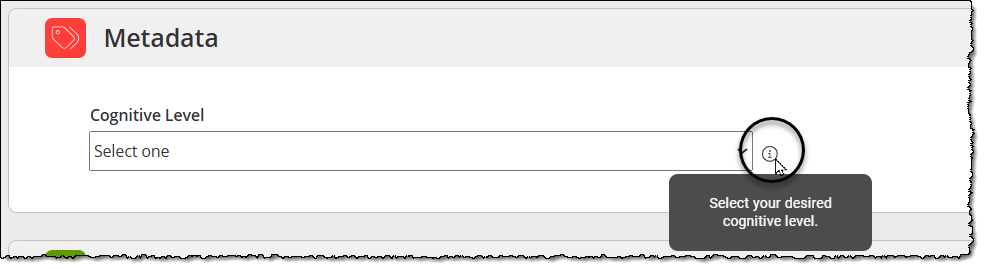
Summary of configurations
Below is a summary of the content to add in each field on the Metadata configuration page in Item Assist.
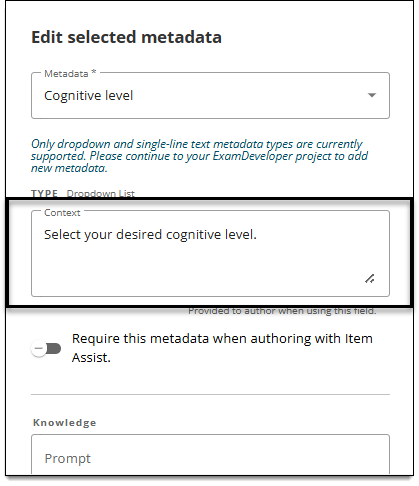
- Context: Select your desired cognitive level.
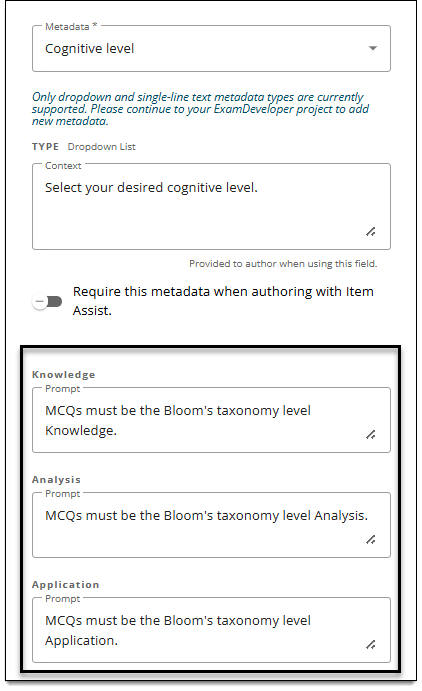
- Knowledge Prompt: MCQs must be the Bloom's taxonomy level Knowledge.
- Analysis Prompt: MCQs must be the Bloom's taxonomy level Analysis.
- Application Prompt: MCQs must be the Bloom's taxonomy level Application.
Detailed instructions
- Make sure you have added a Dropdown List metadata field named Cognitive Level in your ExamDeveloper project. Learn how to add metadata to a project
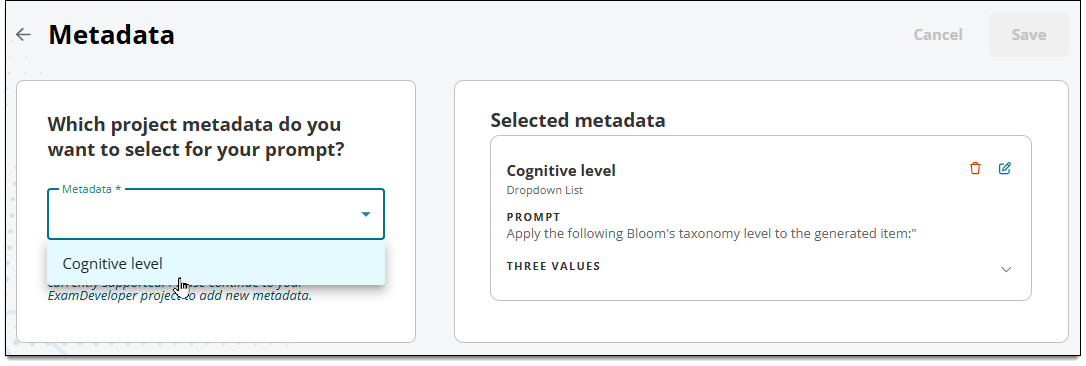
- In the Add metadata area, click the Metadata menu and select Cognitive Level.
- In the Context field, input Select your desired cognitive level.
- The text you provide will appear in the Item Assist authoring prompt when authors hover over the tooltip.
- The text you provide will appear in the Item Assist authoring prompt when authors hover over the tooltip.
- (Optional) Select Require this metadata when authoring with Item Assist if you want to require authors to apply the metadata before generating items.
- Input the following instructions for each option in the corresponding Prompt fields. The instructions will be used by Item Assist to generate items. (The content is not visible to authors.)
- Knowledge: MCQs must be the Bloom's taxonomy level Knowledge.
- Analysis: MCQs must be the Bloom's taxonomy level Knowledge.
- Application: MCQs must be the Bloom's taxonomy level Knowledge.
- Click Add. The metadata is now shown in the Added metadata section.
- Click Save.